
Explore THRW
Somehow, I started keeping my to-do list in VS Code.
I started keeping my personal work list in todo.txt instead of Jira. Then I added nipple covers to the shopping list. At that point, I wanted this workflow on my phone too.
Read story
Claude, ChatGPT, Gemini. I explained our app’s architecture three times. 😤
Gemini for research, Codex to plan the implementation, Claude Code to write it. Every switch started with explaining the app and where I’d left off.
I spent $420 on to-do apps. I ended up back in Google Calendar.
I tried 19. Google Calendar was the only one I kept using every day. So I started cramming my to-dos into it too.
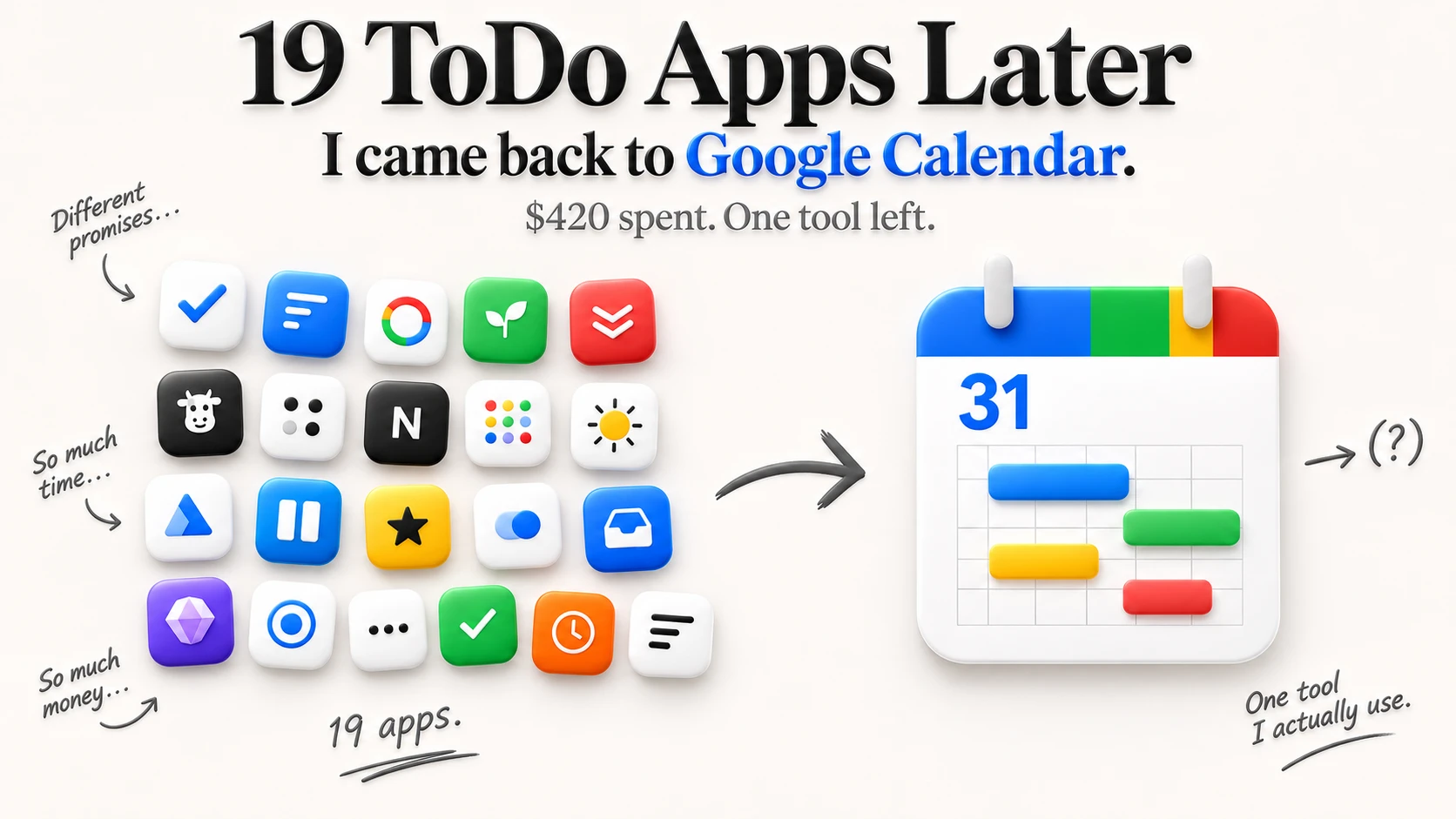
My to-do app had become another thing to do.
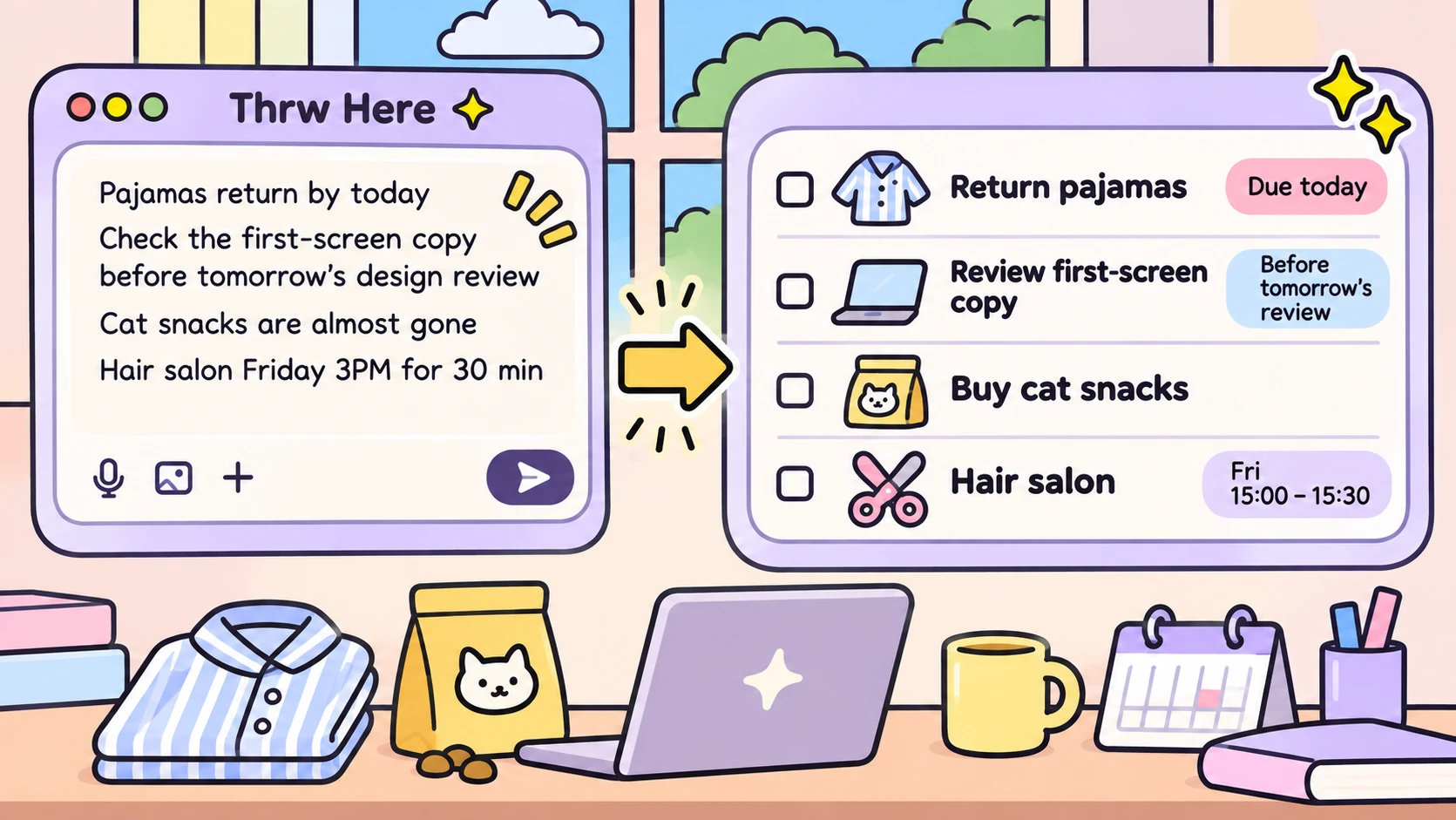
I dumped the jumble in my head into thrw. What came back was a surprisingly tidy list of things I could actually do.
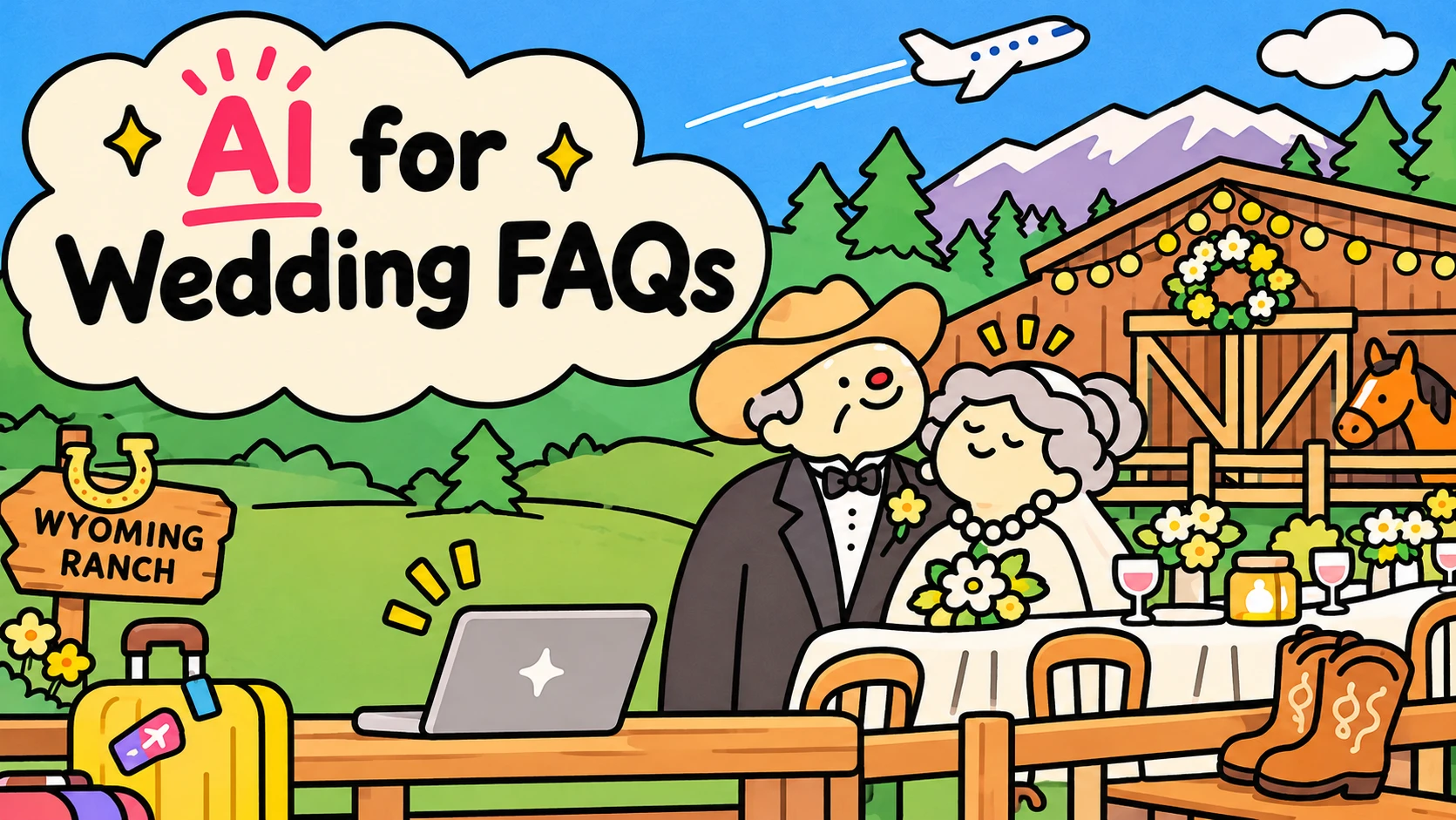
Flights, boots, after-parties. The AI handled the wedding questions.
A private ranch in the Wyoming mountains. An older, very wealthy couple’s three-day wedding. Somewhere in the planning, I ended up with my own AI chatbot for the guests.
Learn
Less busywork. More possibilities.
Small changes to how you plan, use AI, and get work done. Pick something you want to try.
Getting started
A few minutes to find your footing.
New to thrw
Get it out of your head. Sort it out afterward.
Put to-dos, appointments, and loose ideas into one message. Organize afterward.
- Capture several thoughts together
- Check titles, deadlines, and times
See howComfortable with AI chat?
Create and update to-dos in chat.
Ask the way you would in ChatGPT. Then see the changes in your actual list.
- Create to-dos in conversation
- Update dates, details, and completion status
See howToo much on your list?
“What should I do next?” Ask your list.
Ask about unfinished work and deadlines without reading every item yourself.
- Find open work and deadlines
- Choose a next action from recorded progress
See how


Workflows
Put the pieces together and do more.
Planning across AI tools
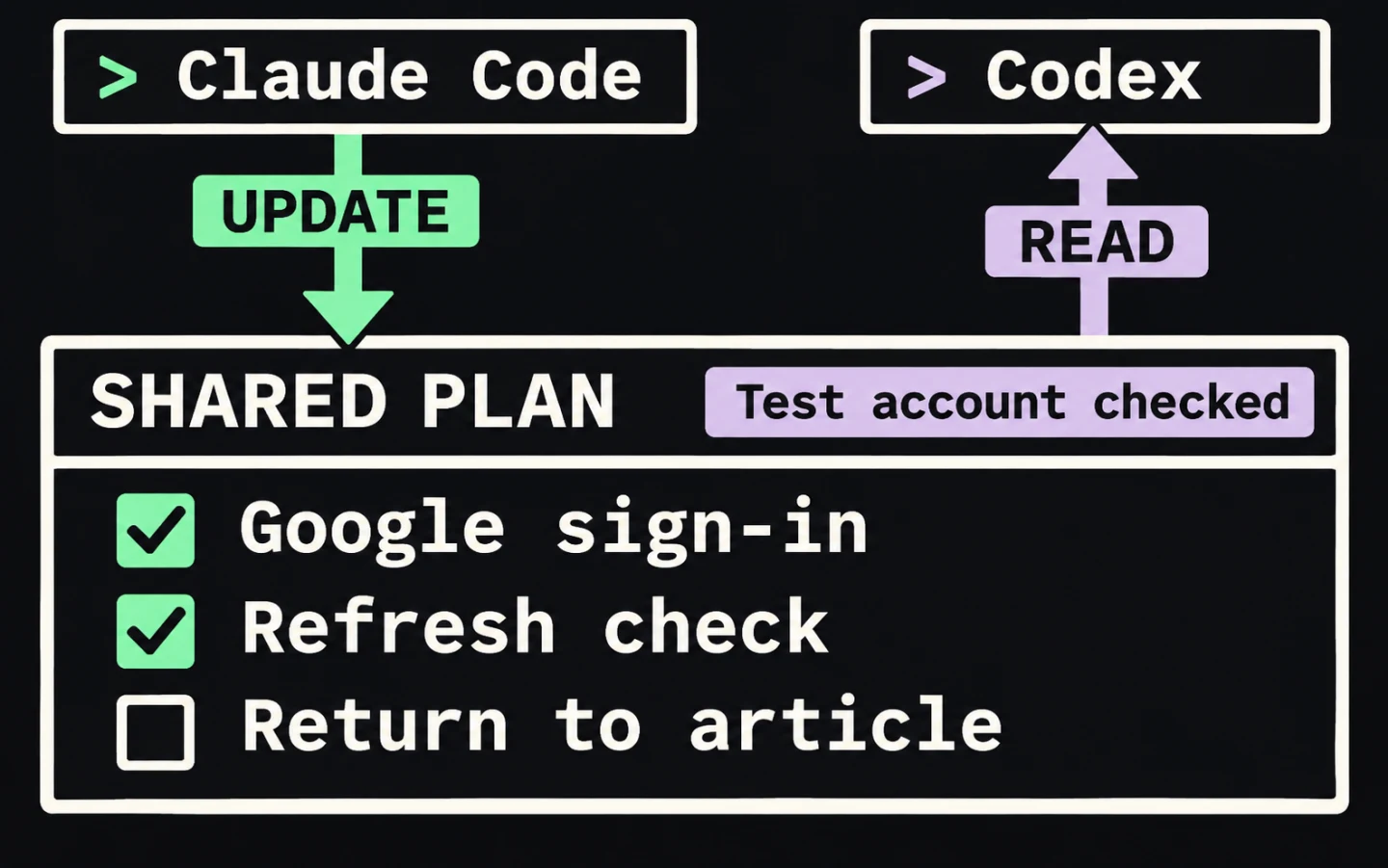
Bring your thrw lists into Claude Code and Codex.
Connect through MCP so the AI you already use can read and update your thrw lists.
- Connect MCP and authorize your account
- Read and update a list from another AI
See howAlready using Google Calendar
Plan your week in chat. See it in Google Calendar.
Separate deadlines from work slots, then sync scheduled work to Google Calendar.
- Turn one message into a weekly plan
- Sync scheduled work to your calendar
See howExplaining the same thing again?
Publish a guide readers can ask questions about.
Publish a visitor-facing list with AI answers grounded in the information you provide.
- Publish a visitor-facing list
- Let visitors ask about its contents
See how
By role
Find the setup that fits your work.
For developers
Fixed isn’t always verified. Record both.
For developers: separate code changes from behavior checks so the next AI has evidence.
- Record fixes and verification separately
- Pass evidence to the next AI
See howFor freelancers
Waiting on a client? Find the work you can do now.
Keep each client’s work and notes together so you can see what’s ready to start and what needs a reply.
- Keep each client’s work together
- Separate action from waiting
See howFor team leads welcoming new hires
One link for a new hire’s first day.
For team leads: share first-day instructions while keeping evaluation and internal preparation notes separate.
- Separate instructions from internal preparation
- Let new hires ask the guide questions
See how
Methods
GTD, Eisenhower, time blocking. Put your method to work with thrw.
Using or getting started with GTD
GTD, without doing all the organizing yourself.
Getting things out of your head is the easy part. Learn how AI can help you decide what to do next—and keep your GTD lists up to date.
- Understand GTD and what makes it hard to maintain
- Choose next actions and organize your lists with AI
See howPrioritizing with four quadrants
Eisenhower Matrix: Decide what deserves your time.
Separate urgency from importance, then reserve time for the work that matters.
- Review all four areas with AI
- Schedule important, non-urgent work
See howPracticing time blocking
Time blocking: Put your to-dos on the calendar.
Set aside time for your to-dos and sync those work blocks to Google Calendar.
- Set aside time for specific work
- Carry schedule changes into your calendar
See how